


A business email address on your own domain is part of any serious web project. Writing to a client as name@yourcompany.com builds more trust than writing from a free Gmail or Outlook account.
You can read that email in several ways: with an app on your computer or phone, or right in your browser, with nothing to install. This guide covers the second option: Webmail with Roundcube, the service already included in your hosting account.
In 30 seconds
- Roundcube is the webmail of cPanel hosting: since cPanel version 108 it is the only one included.
- There are two ways in: type yourdomain.com/webmail or open it from your hosting panel.
- Set two things first: HTML formatting for your messages and your identity with a signature.
- Beyond email you get contacts, a calendar and canned responses.
What is Roundcube?
Roundcube is an email client you use in your web browser. Its interface looks like modern email apps: the message list on one side, the reading pane on the other and a bar with the main shortcuts.
With Roundcube you handle everything email involves, and you also manage your contacts and your calendar.

If your hosting runs cPanel, Roundcube is the webmail you will find: cPanel retired Horde in version 108 and moved its users’ contacts and calendars to Roundcube.
How to open Webmail
Before you use Roundcube you need to sign in to your email account on the web. You have two options.
Direct access with your domain address
Add /webmail to the end of your domain, for example:
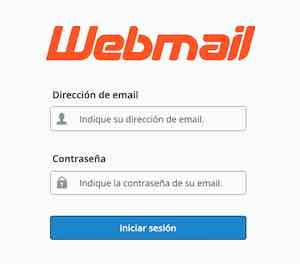
https://yourdomain.com/webmail
You will see a screen asking for your email address and its password.
Access through your hosting panel
In your hosting panel, look for the Email section and open Email Accounts.
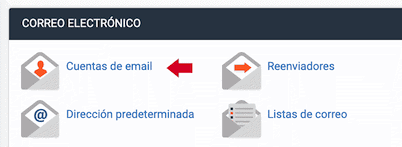
You will see the list of your accounts. Next to each one is the button to check its email.

The Webmail panel screen
Whether you come in by address or by panel, depending on your hosting setup you may see a Webmail screen with Roundcube already chosen.
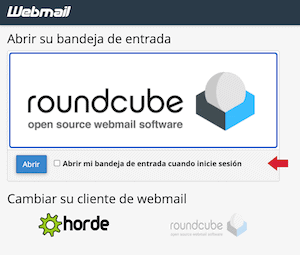
You can set Roundcube to open directly every time and skip that screen. You can always go back to it from Roundcube.
Roundcube overview
When you open Roundcube you will see an interface like this:
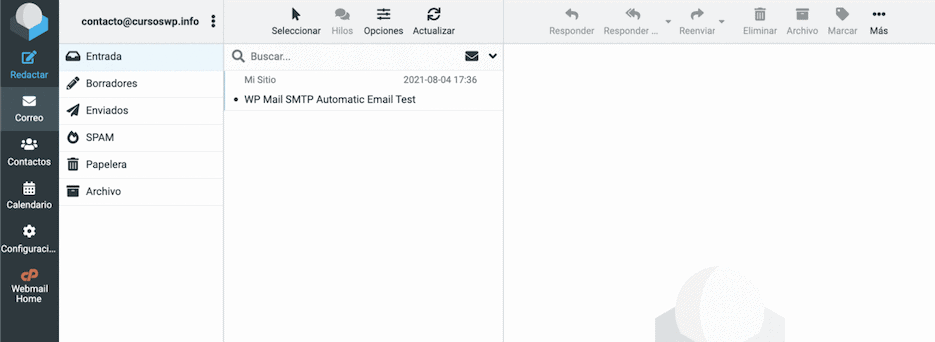
On the left is the bar with the main shortcuts: Compose, Mail, Contacts, Calendar, Settings and the button to go back to the Webmail screen.
First settings
Before you start, we recommend checking two settings.
HTML emails
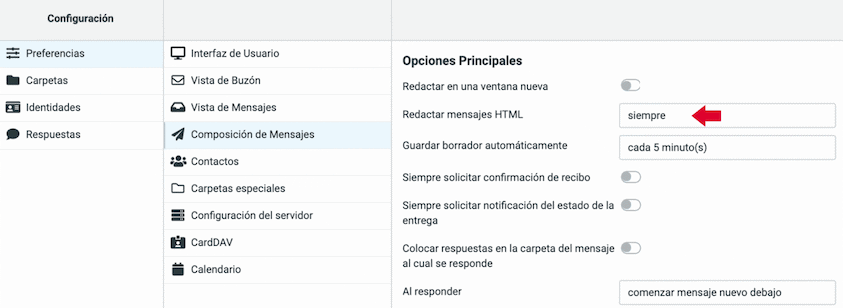
To send messages with formatting (bold text, links, images), go to Settings > Preferences > Composing Messages and turn on Compose HTML messages.
Identity and signature
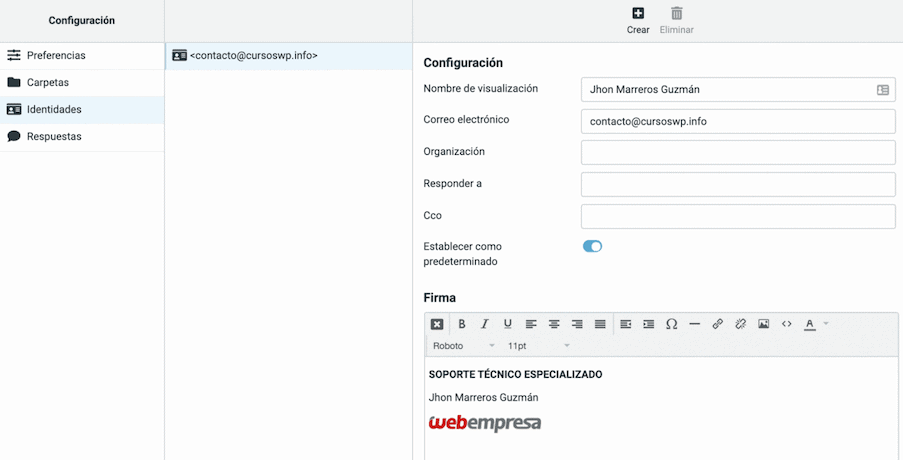
Your identity stores your name, your email and your signature, so you do not have to type them in every message.
To edit it, go to Settings > Identities, choose your email and fill in the name and signature.
If you want a signature with your logo, follow our guide on how to make an email signature in Roundcube / Webmail.
Writing emails
To write an email, use the Compose button on the side bar. You will see a screen like this:
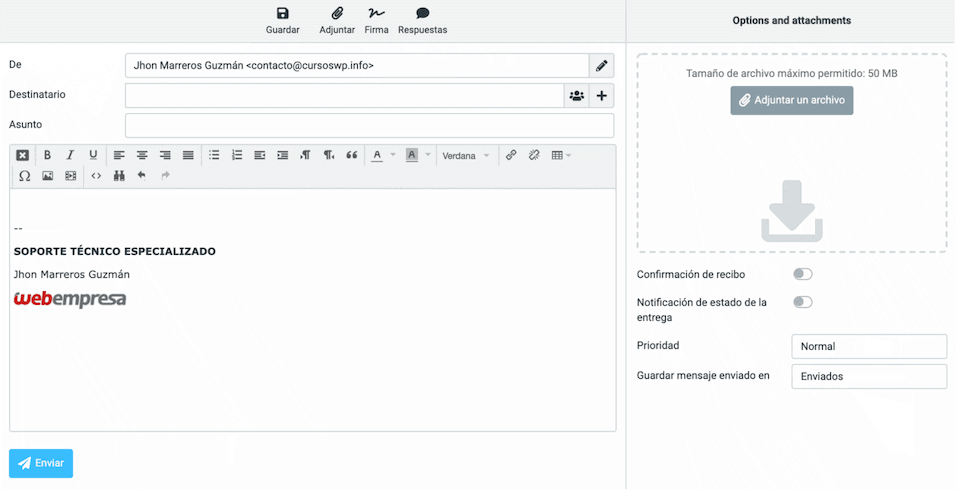
The earlier settings already show here: the message is in HTML, and your name and signature appear.
On this screen you can also:
- Save the email as a draft to finish it later.
- Attach files.
- Choose the signature.
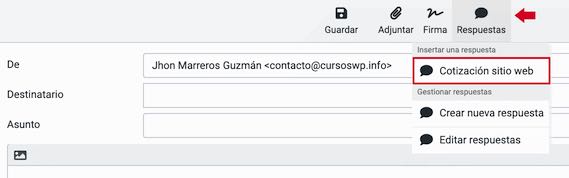
- Insert a canned response (we explain how below).
Emails and folders
In Mail you see your mailboxes; the inbox opens by default. Roundcube shows the message list and, when you click one, its content in the same panel.
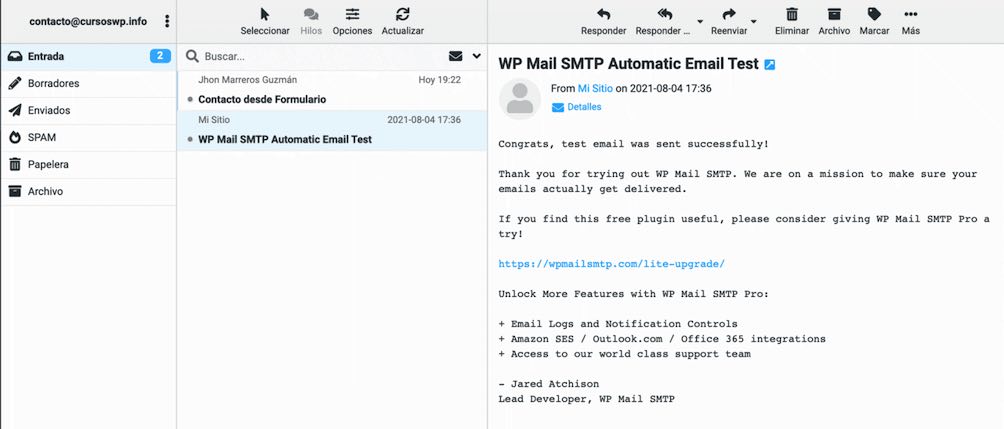
| Folder | What it holds |
|---|---|
| Inbox | The emails you receive. |
| Drafts | Emails you wrote and saved but have not sent. |
| Sent | The emails you sent. |
| Spam | Emails marked as unwanted. |
| Trash | The emails you removed. |
| Archive | The emails you archived. |
You can add more folders in Settings > Folders.
When you open an email you can reply, remove it, archive it or flag it. The More button has further options.
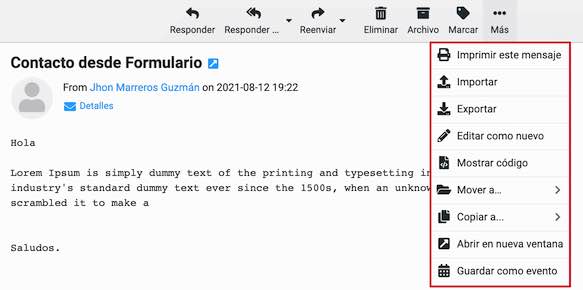
One of them saves the email as an event in your calendar.
Contacts
In Contacts you manage your address book: you can add groups, add or remove contacts, and import or export them.
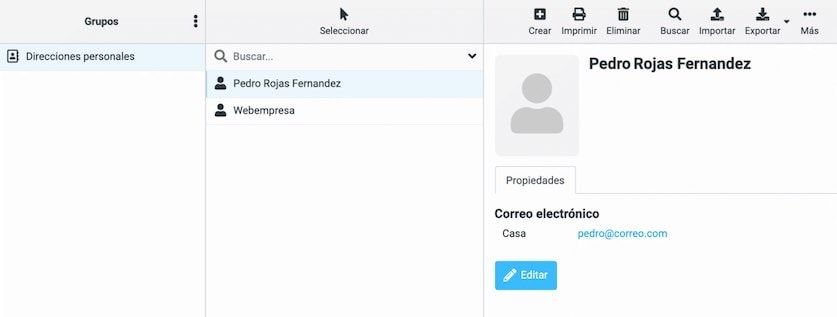
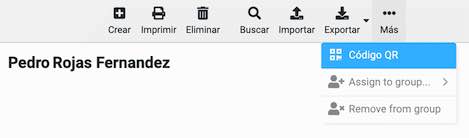
Each contact has a QR code that makes it easy to share.
Calendar
Roundcube includes a calendar to keep you organized. You can have more than one calendar in your account and import or export events to other tools.

You can add events with reminders, repeating events and events based on an email you received, as shown in the folders section.
Settings
The settings menu looks like this:
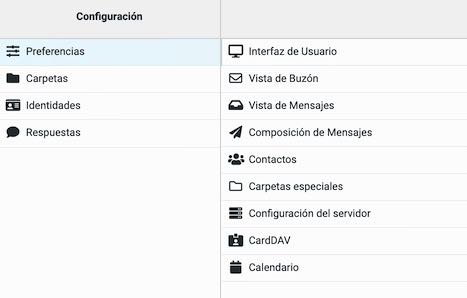
Settings are grouped into:
- Preferences
- Folders
- Identities
- Responses
We already covered message composing and identities. The other settings work well for most people as they come.
Canned responses
If you often reply with the same text (opening hours, payment details, instructions), save it as a response in the settings menu.
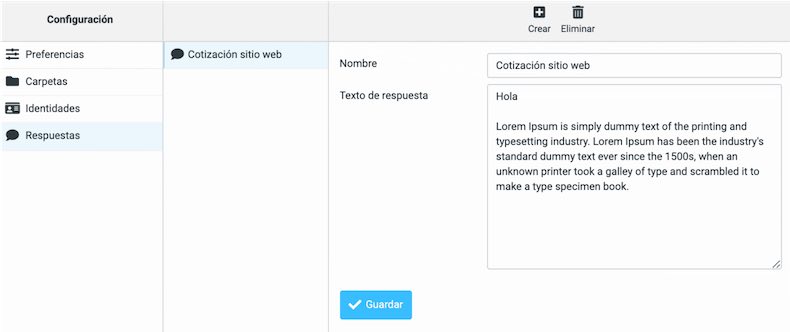
Then, when you write or reply to an email, you can insert any of them with one click.
Good practices for your Webmail
To use it with peace of mind
- Use a long, unique password for each email account, and change it if someone else learned it.
- Sign out when you use a shared or public computer.
- Be wary of emails asking for your password or sending you to a page to “verify your account”: your provider does not ask for it by email.
- Watch your mailbox space: each account has a quota; empty the trash and archive heavy attachments so you keep receiving email.
If you also want to read your email on your phone or in Outlook, check the differences between IMAP and POP before you set it up.
Conclusion
There is no excuse left for not using your business email: with Roundcube you handle your emails, contacts and calendar in the browser, with no app to install.
At Damos we include business email with Webmail in our web hosting, and we help you set up your accounts on your devices. If your team needs more collaboration tools, first compare with Google Workspace and choose with our hosting and email plans.
Does your team already use email on your company domain?
Frequently asked questions
What is Roundcube?
It is an email client you use in the browser. It comes with cPanel hosting and lets you handle emails, contacts and a calendar with nothing to install.
How do I open my Webmail?
Type yourdomain.com/webmail in your browser and enter your email address and its password, or open it from the email accounts section of your hosting panel.
How do I add my signature in Roundcube?
In Settings > Identities, choose your email and write the signature. If you turn on HTML messages, you can add your logo.
Can I use Roundcube on my phone?
Yes, it adapts to small screens. If you prefer an email app, set it up with IMAP to see the same messages on all your devices.
What happened to Horde?
cPanel retired it in version 108. Horde contacts and calendars moved to Roundcube, which is now the cPanel webmail.
Need business email on your domain?
We help you set up your accounts on your computer and your phone.
Let’s talkKeep reading
Sources: text based on a Webempresa guide, rewritten, refreshed and expanded by DAMOS Soluciones · Screenshots: Webempresa · cPanel, moving Horde data to Roundcube.