


Whether it’s for security, because you’re going to stop using a service or simply because you like having copies of everything, Google Takeout is the official tool to download the data from your Google apps: Gmail, Drive, Photos, Calendar, YouTube and many more.
You can download all the data of each app or, in some of them, just part of it. In this guide we explain how to do it step by step and what to keep in mind so your backup is actually useful.
In 30 seconds
- Go to takeout.google.com, choose the products and the format, and Google prepares the file.
- You can receive it as a link in your inbox or directly in Drive, Dropbox, OneDrive or Box.
- Files expire in about 7 days and each one can be downloaded up to 5 times.
- You can schedule it to repeat every 2 months for one year.
How to use Google Takeout step by step
1. Sign in to your Google account
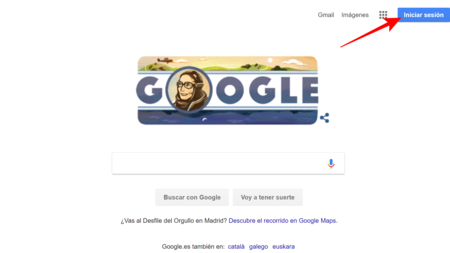
First, sign in to Google, from the search engine or from any of its services. Just click the Sign in button in the top corner of any of its pages.
2. Open Google Takeout and choose the products
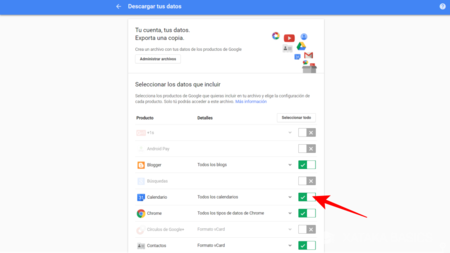
Now go to Google Takeout. You’ll see the list of all Google products. Tick the products you want a copy of with the checkbox next to each one. If you only want Gmail, clear all the boxes first and tick only Mail.
3. Adjust which data and in what format
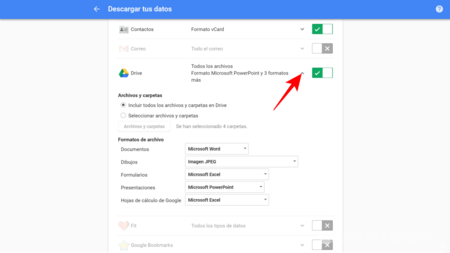
Some products show buttons that open more options. There you can decide whether to include everything or only some folders or labels; in Gmail, for example, you can pick specific labels. You can also choose the format of some files.
The options change depending on the app: not all of them let you pick folders or formats.
4. Click Next step
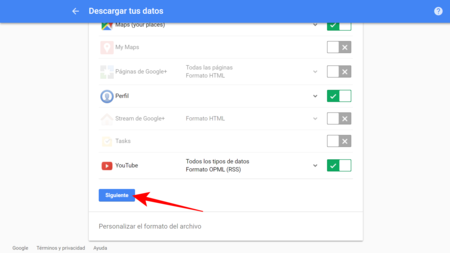
Once you’ve chosen all the products, click Next step. The next screen lets you set up how you want to receive the file.
5. Choose how to receive the file
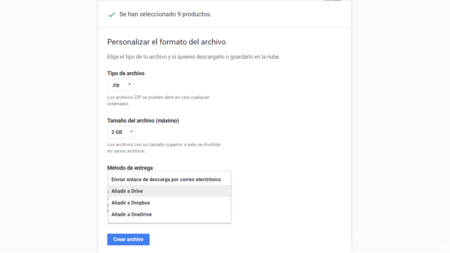
Here you set the delivery method, the frequency, the file type and its maximum size (we explain each option below). When everything is ready, click the button to start the export.
6. Wait for Google’s notice
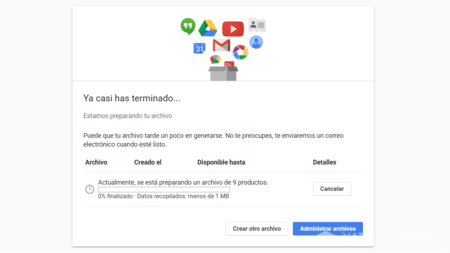
Google will show you the progress of the export. You don’t need to do anything else: depending on the amount of data, it can take a few minutes or several days, and when it’s ready Google will notify you by email or deliver it to the place you chose. Then just unzip the file and open your data.
File options you should know
According to Google’s official help:
- Delivery method: a download link by email, or add the file directly to Google Drive, Dropbox, Microsoft OneDrive or Box.
- Frequency: once, or scheduled exports every 2 months for one year.
- File type: .zip, which opens on almost any computer, or .tgz, which may need extra software on Windows.
- Maximum size: if the export is larger, Google splits it into several files; choosing 50 GB reduces the number of parts.
- Validity: the file expires in about 7 days and can be downloaded up to 5 times. After that you have to request a new one.
Watch your storage: if you choose to send the backup to Google Drive, it will take up space in your account. If your account is almost full, use the download link instead and keep the copy on an external drive.
What to do with the backup
Gmail messages are downloaded as an .mbox file, a standard format you can open or import in programs such as Thunderbird. Google keeps each message’s labels inside the file, so you don’t lose your organization.
Good practices for your backups
- Keep the copy in at least two different places, for example an external drive and another cloud.
- Schedule the export every 2 months if your email is important for your work.
- Check that you can open the file before erasing anything in your account.
- Protect the drive or folder that holds the copy: it contains all your information.
If your email is a business account
If you use Gmail with your company’s domain through Google Workspace, the administrator may have turned off Google Takeout for users; in that case, the administrator has to make the copy. And if your company uses the email included with its hosting, the backup is made with the server’s tools or with an email program set up via IMAP.
At Damos we help you choose and set up your company’s business email, with web hosting and email with your domain or with Google Workspace. If you’re comparing options, read the best email providers and, once you decide, check our hosting and business email plans.
When was the last time you backed up your email?
Frequently asked questions
What is Google Takeout?
It’s Google’s official tool to download a copy of the data of your apps, such as Gmail, Drive, Photos, Calendar or YouTube. You can choose which products to include, the format and how to receive the file.
How long do I have to download my backup?
According to Google, the file expires in about 7 days and each one can be downloaded up to 5 times. After that you have to start a new export.
Can I schedule the backup?
Yes. When you set up the export you can choose to repeat it every 2 months for one year, automatically.
What format does Gmail email download in?
In an .mbox file, a standard format that can be opened or imported in email programs such as Thunderbird. Google keeps each message’s labels inside the file.
Why don’t I see Google Takeout in my business account?
In Google Workspace accounts, the administrator can turn off Takeout for users. In that case, ask whoever manages your company’s email to make the copy.
Want to get your company’s email in order?
We help you choose and set up the business email that best fits your team.
Let’s talkKeep reading
Sources: text based on an article by Xataka, refreshed and expanded by DAMOS Soluciones · Example images: Xataka · Google Help, how to download your data.